May 03, 2026
Event Technology
3 min read
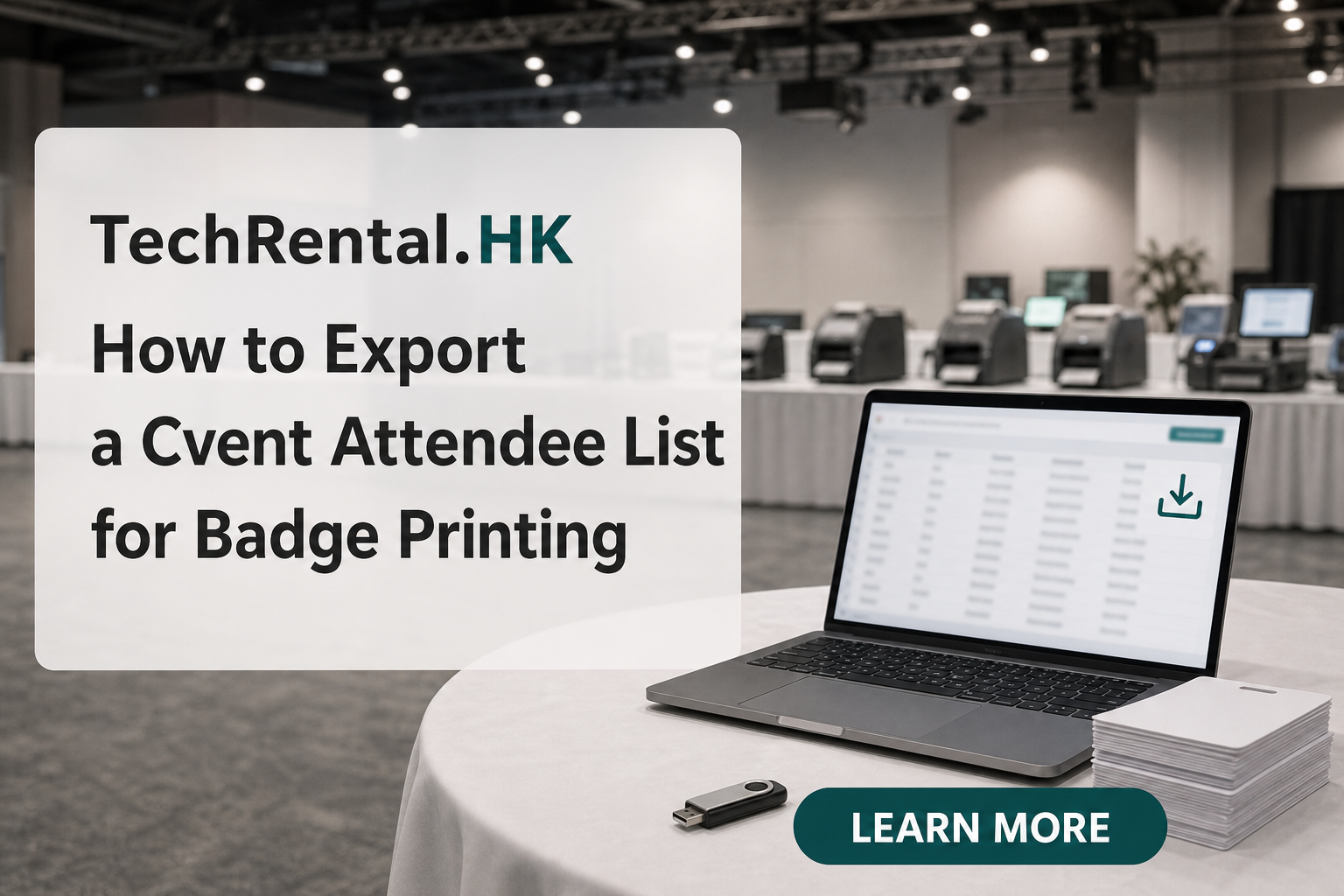
How to Export Your Cvent Attendee List for Badge Printing
Cvent is the most common registration platform for large conferences. But exporting attendee data for badge printing trips up even experienced event organisers. This guide walks through the exact steps.
Step 1: Access the Attendee Report
- Log into your Cvent event admin panel
- Navigate to Events → Your Event → Reporting
- Click Attendee Report under Standard Reports
Step 2: Select the Right Fields
Cvent's default export includes too much data. For badge printing, you only need:
| Badge Field | Cvent Field Name | Required? |
|---|---|---|
| First Name | First Name |
Yes |
| Last Name | Last Name |
Yes |
| Company | Company |
Optional |
| Job Title | Job Title |
Optional |
| Registration Type | Registration Type |
Optional (for colour coding) |
| QR Code / Badge ID |
Confirmation Number or Badge ID
|
Yes (for check-in) |
Step 3: Export as CSV
- In the Attendee Report, click Export
- Choose CSV (comma-separated values)
- Select All Attendees (not just confirmed, waitlisted attendees may become confirmed last-minute)
- Click Download
Step 4: Clean the CSV
Before sending the file to your badge printer, clean it:
- Remove blank rows. Cvent exports often include empty rows at the end.
- Standardise names. "john smith" should be "John Smith" on the badge.
- Check special characters. Accented names (José, François) must render correctly.
- Deduplicate. Cvent sometimes exports the same attendee twice if they have multiple registration types.
Step 5: Map Fields to Badge Template
Most badge printing workflows use a mail-merge style approach:
- Design your badge template in Word, Illustrator, or your badge software
- Link the CSV as a data source
- Map each field: First Name → [Name], Company → [Company]
- Preview 5-10 badges before printing the full batch
Common Mistakes
- Exporting too late. Export the morning of the event to capture last-minute registrations.
- Forgetting walk-ins. Leave blank badge stock for on-site registrations.
- Wrong field order. Confirm with your badge printer which column order they expect.
What If You're Printing Onsite?
If you're printing badges at the venue (not pre-printing), you need a live data feed:
- Export from Cvent every 2-4 hours before event day
- Final export the morning of the event
- Import into your onsite badge printing software
- Some setups support API polling, ask your printer rental company if this is available
Need help with Cvent badge printing? Request a quote and we'll handle the CSV mapping and template setup for you.
Need equipment for your next event?
TechRental.HK provides iPads, MacBooks, laptops, printers and WiFi routers for rent across Hong Kong.
Search
Recent Posts

![Hong Kong Complete Guide for Badge Printing: Custom ID, Event & Conference Badges Explained [2025-2026]](/images/blog/badge-printing-complete-guide-in-hong-kong.webp)
Categories
Related Articles
June 25, 2026
Event Tech Rental
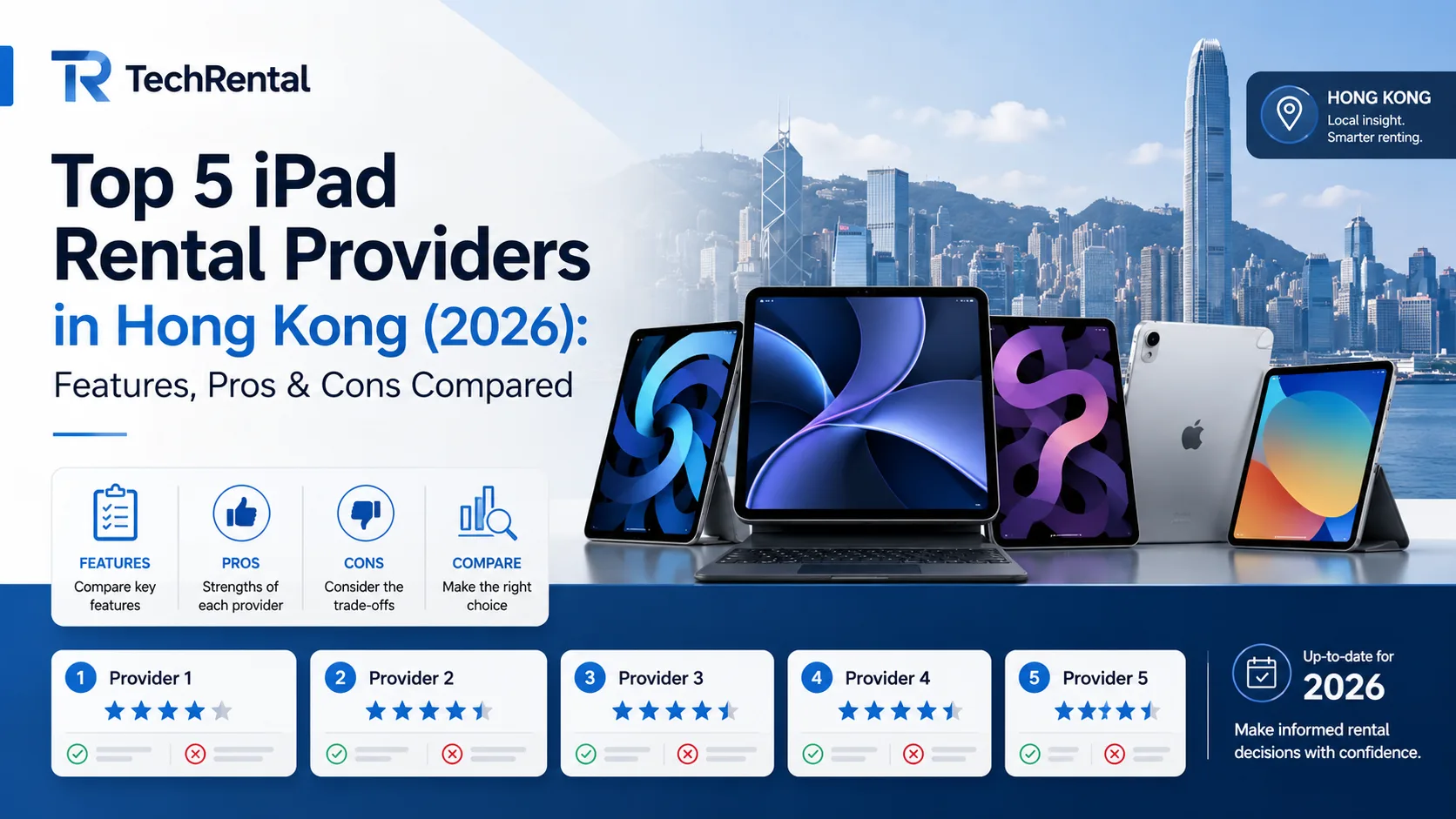
Top 5 iPad Rental Providers in Hong Kong (2026): Features, Pros & Cons Compared
Read More